Session for iPhone

Take a break. Come back on time.

Pick the apps that pull you in and set a return alarm. When it rings, Focus Lock blocks those apps so you can get back to work.

Watch the alarm put scrolling on hold. From Session’s onboarding.

Apple Screen Time

How to limit screen time on iPhone

In Settings → Screen Time, turn on App & Website Activity if prompted.

Daily allowance

Set a daily limit for an app

Give an app or category a daily allowance, such as 30 minutes.

iOS 26
Tap App Limits → Add Limit. Select the apps or categories, then set their daily allowance. Items selected together share one limit.
iOS 27
Open Time Allowances. Choose or create a category and set its daily allowance.
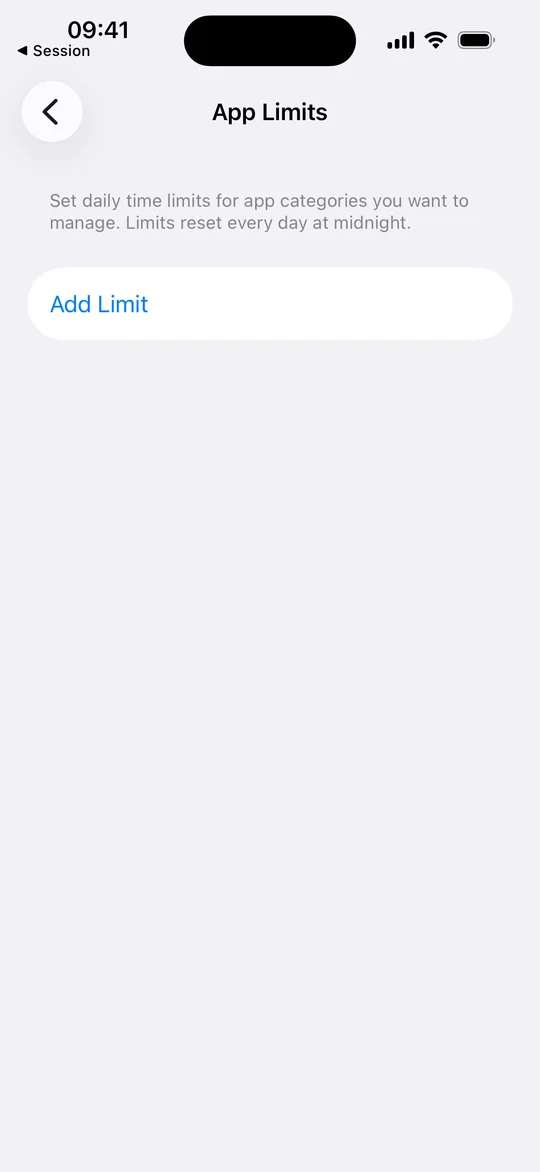
iPhone App Limits screen with the Add Limit button
App Limits · iOS 26

Recurring schedule

Schedule time away from apps

Pick a recurring time, such as the hour before bed. Use the allowed-apps settings to keep your essentials available.

iOS 26
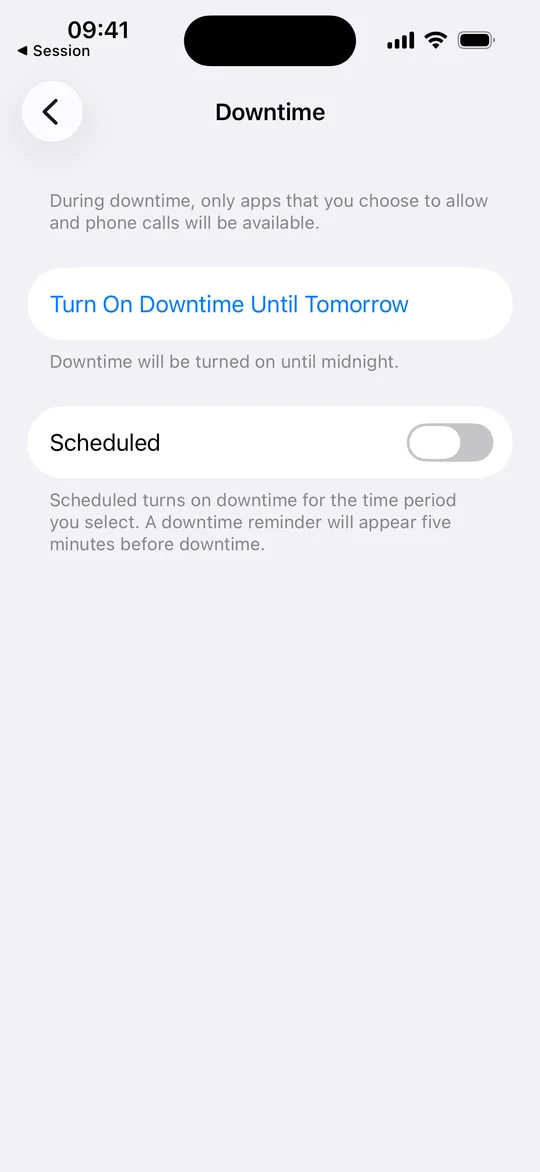
Open Downtime, turn on Scheduled, and choose the hours. To enforce the block, set a Screen Time passcode and turn on Block at Downtime.
iOS 27
Open Screen Time Schedule, turn on Schedule, then tap Add Schedule to choose days and hours.
iPhone Downtime screen with the Scheduled switch
Downtime · iOS 26

See Apple’s full instructions for iOS 26 and iOS 27.

Try Focus Lock on your next break

Give Session Screen Time access, choose your apps, and set your return alarm.

Download on the App StoreWatch the full Focus Lock demo